Split Payment
Split Payment automatically divides every payment received by a sub account between that sub account and its parent account, without the payer ever seeing two charges.
For example, a hotel (sub account) keeps 85% of each booking, and the booking platform (parent account) that owns it receives 15%.
How it works
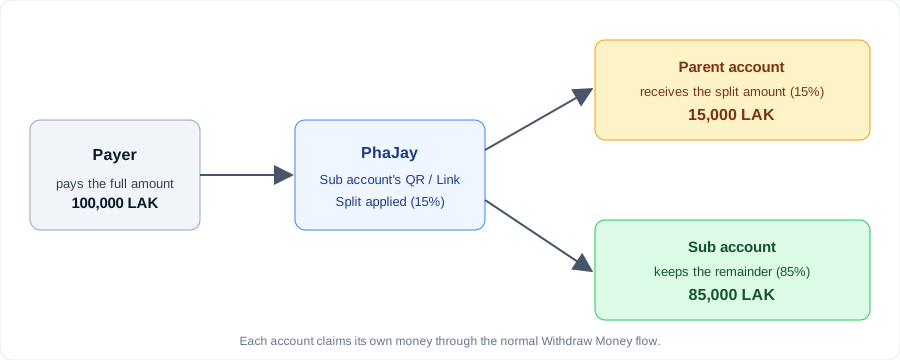
- The payer scans the QR (or opens the Payment Link) of the sub account and pays the full amount.
- When the payment is created, PhaJay divides it into two payments:
- Parent account receives the configured percentage.
- Sub account keeps the remainder.
- Both payments are completed together as soon as the bank confirms the payment.
- Each account sees its own payment in Payment History and claims its own money through the normal Withdraw Money process.
Example: with a split of 15%, a payment of 100,000 LAK gives 15,000 LAK to the parent account and 85,000 LAK to the sub account.
ℹ️ Note: The split amount is rounded and the sub account receives whatever remains, so the two amounts always add up exactly to the amount the payer paid.
Rules
| Rule | Details |
|---|---|
| Who can configure | Only the parent account that owns the sub account. A sub account can never change its own split. |
| Percent range | Greater than 0 and up to 90%. |
| Enabling | A percent greater than 0 is required to enable Split Payment. |
| Disabling | The saved percent is kept, so you can enable it again at any time. |
| Who receives the split | The parent account that owns the sub account at the time the split is configured. |
| Existing payments | A change only affects payments created after the change. |
| Payer | Sees only one charge for the full amount. Nothing changes in the payment process. |
How to set up Split Payment
ℹ️ Note: The Sub Account menu is available to parent accounts whose sub account (agent) status is approved. Only the parent account can set up Split Payment.
Step 1: Open the Sub Account page
Log in to the PhaJay Portal (opens in a new tab) with the parent account and click Sub Account in the menu. The Split Payment column shows the current percent of each sub account.
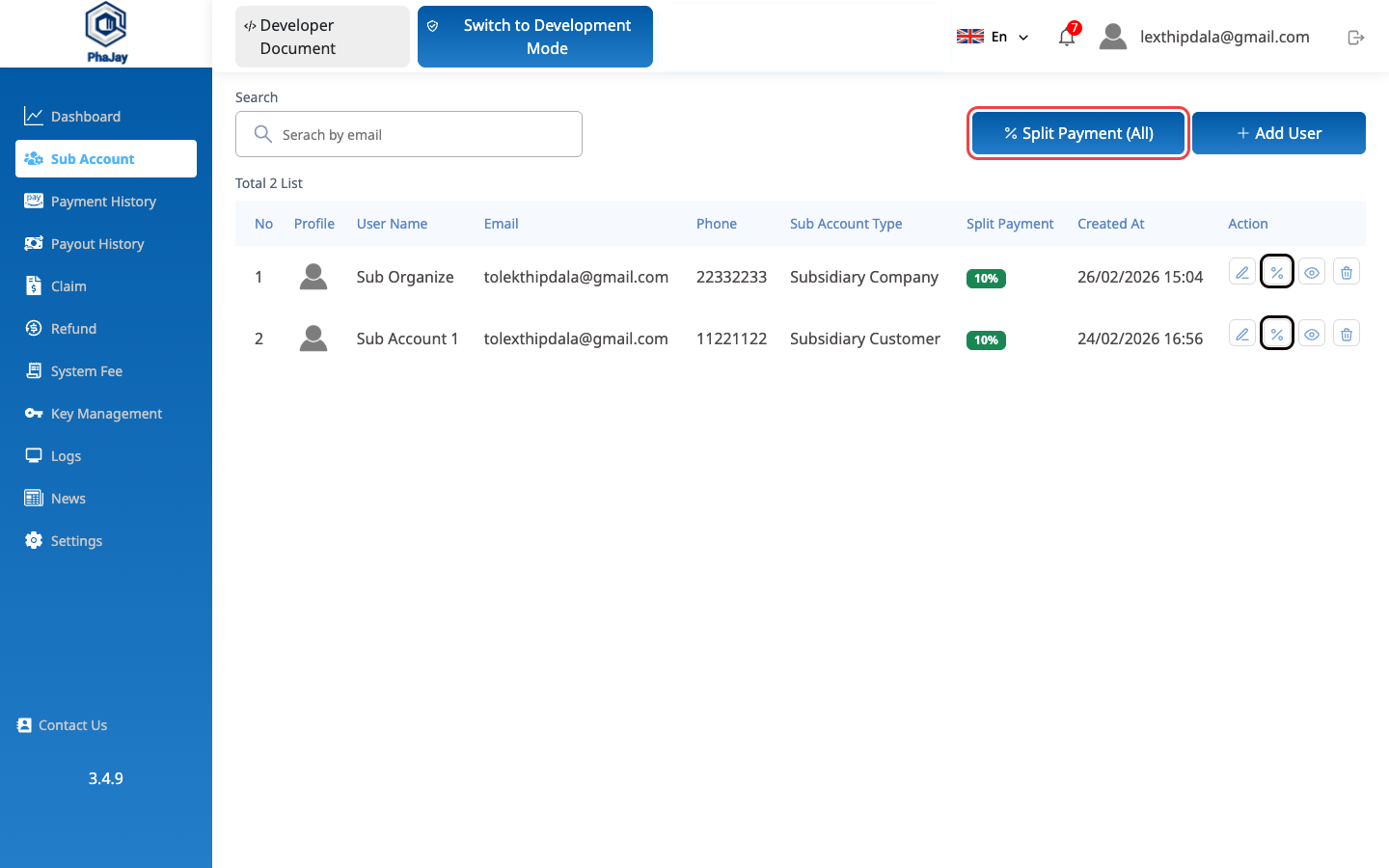
You can set up Split Payment in two ways:
- One sub account — click the % button in the Action column of that sub account.
- All sub accounts — click Split Payment (All) at the top of the list.
Option 1: Set up for one sub account
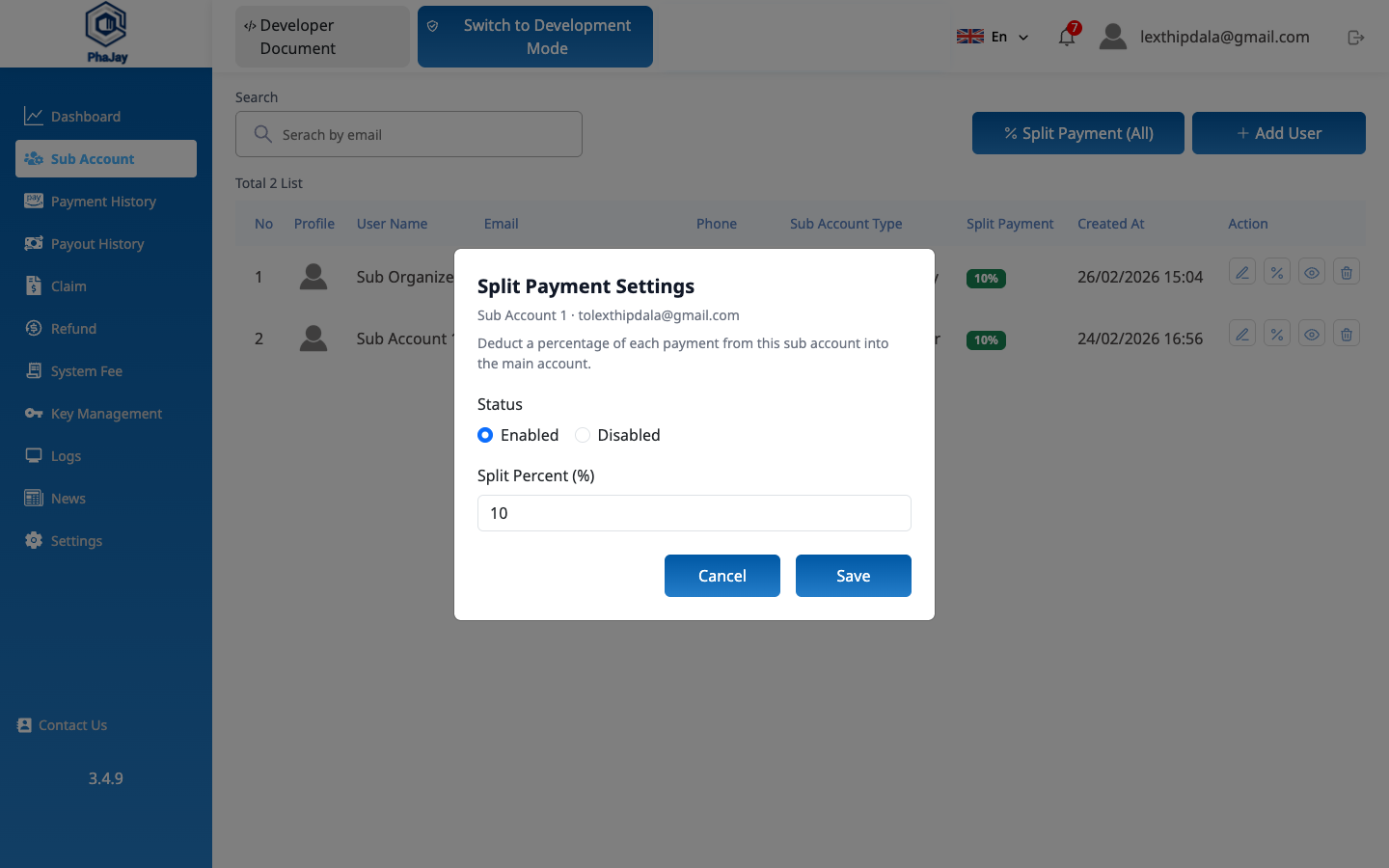
Click the % button in the Action column of the sub account. In the Split Payment Settings window:
- Choose Enabled (or Disabled to turn it off).
- Enter the Split Percent (%), for example
10. - Click Save.
Option 2: Set up for all sub accounts at once
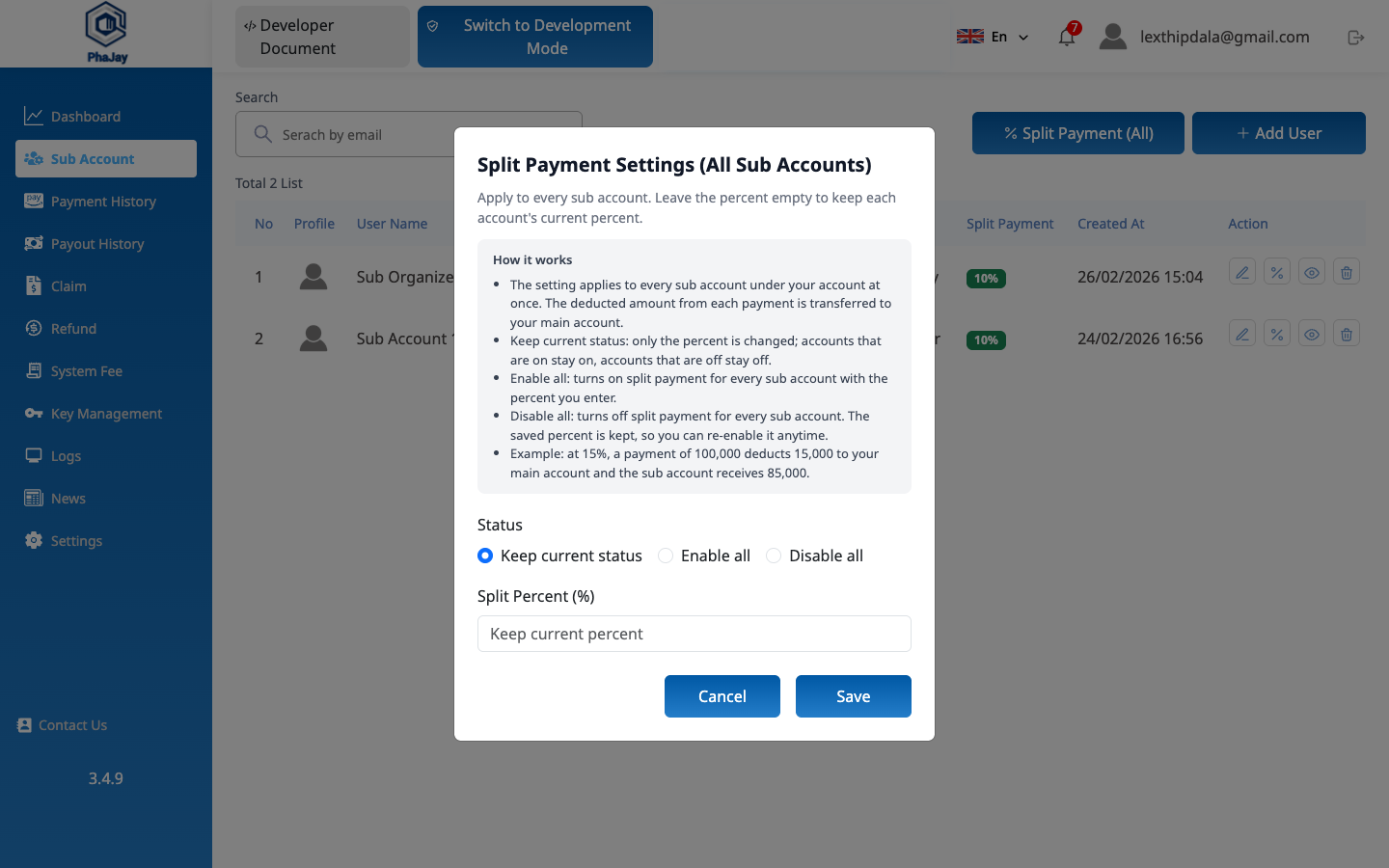
Click Split Payment (All). In the Split Payment Settings (All Sub Accounts) window:
- Choose the Status option.
- Enter the Split Percent (%), or leave it empty to keep each account's current percent.
- Click Save.
| Status option | Description |
|---|---|
| Keep current status | Only the percent changes. Accounts that are on stay on, accounts that are off stay off. |
| Enable all | Turns on Split Payment for every sub account with the percent you enter. |
| Disable all | Turns off Split Payment for every sub account. The saved percents are kept, so you can enable it again at any time. |
⚠️ Note: When you choose Enable all, the percent is required so that all sub accounts end up with the same cut.
After saving, the new percent appears in the Split Payment column.
After a payment is made
- The payer pays the full amount as usual — creating a Payment QR or Payment Link does not change.
- The sub account's payment shows the amount it keeps (the remainder), not the full amount the payer paid.
- The parent account receives its split amount as its own payment, visible in Payment History, and can claim it like any other payment.
Last updated: 2 days ago